Taking your photos from good to great can be as simple as cropping, as I discussed in a previous post. But how?
All photo editing programs have support for cropping. I primarily use Photoshop & GIMP and will discuss how to crop a photo with GIMP. GIMP is freely available and runs on Windows, Mac & Linux. It can be downloaded from the GIMP website.
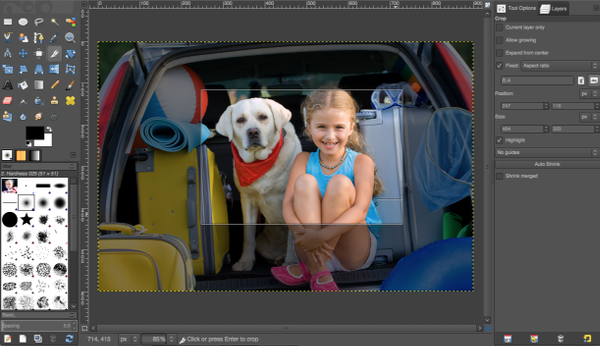
Here is a photo of an adorable little girl & her pup. The photo would look much better without the clutter surrounding them. I will crop the photo in GIMP so they are the focus.
There are several ways to crop a photo within GIMP, but in this post I will stick with using the specific tool dedicated to cropping: the crop tool. Located in the toolbox, it looks like a scalpel
. The crop tool is also accessible through the menus, Tools -> Transform Tools -> Crop.
The tool options are located in the right side panel. If you don’t see it after selecting the crop tool, bring it up, Windows -> Dockable Dialogs -> Tool Options. Only the “Hightlight” option is selected by default, which is helpful by dimming the area of the image that is not currently selected. You’ll see this in the following examples.
At this point you may select an area of the image to crop by clicking and dragging to create a rectangle of the crop area. Once you release the mouse button, the rectangle may be moved by dragging from the center of the rectangle, and it may be resized by dragging on one of the boxes on the interior edges of the rectangle (they show when mousing over the sides).
The “Fixed” option with “Aspect Ratio” selected is useful if you want to constrain the rectangle to a specific ratio such as 4×6, 5×7 or 8×10. In the text box below “Fixed”, simply replace “Current” with 6:4. You may have to drag the rectangle a little in order for the new constraint to take effect.
Notice in the following screenshots that the cropping rectangle is slightly different due to the different ratio constraints.
You can do quite a bit just with the basic crop & fixed cropping ratios, but the cropping tool has several other options to help you. The other option I click often is “Size”. After laying down the cropping rectangle, enter your desired width and height in the text boxes. The rectangle will resize, and then move it into position. This is especially useful if you need a square image and therefore need the crop to have equal height & width dimensions.
More information on the GIMP cropping options can be found in the GIMP cropping documentation and in the GIMP cropping tutorial.
In my next post I’ll discuss non-rectangular cropping shapes such as circular & elliptical within GIMP.
Thanks for reading & have fun!
Touring regions of the United States with my Canon Rebel & tripod in tow tops my “Things I Enjoy Most” list, and planning those excursions is close behind. Heck, it may even be higher. The anticipation of new places to experience & photograph is something that is hard to beat.
As I daydream of my future adventures, I usually have places in mind … national parks, zoos, monuments, etc. As Spring is in full swing, I have got the itch to shoot some flying flowers … butterflies! I would like to observe a variety, and the easiest way to do that is to visit a few butterfly sanctuaries. But I only have a list, and it is difficult to visualize when plotting my driving trip. Enter Google Maps Engine.
Google Maps are not only great for directions, but you can plot a group of locations using zip codes, city/state or latitude/longitude points.
All you have to do is create a csv (comma separated values) file. Any spreadsheet program can write out csv format, but it is also easy to do by hand. If you are using Google Docs, it is even easier. Import the file, and Bob’s your uncle (where did that saying come from, anyway?)
Here is a listing of butterfly sanctuaries in csv format. The first line provides the types of information that each of the following lines has (also called fields). This file has two fields. Each sanctuary has its own line: the name of the sanctuary and the zip code of where it is located, separated by a comma.
After heading on over to the Google Maps Engine homepage at http://mapsengine.google.com, you are greeted with this:
Click “Create a new map”, and you are presented with a brand-spankin’ new map. Click on “Import” on the left side of the screen to bring in the csv file.
Select your csv file by dragging the file into the window and dropping, or click the blue button to get a dialog that allows you to select it. You also have the option to import from Google Drive if you have saved your information in a spreadsheet there.
You will be prompted to identify which label you gave your location information (on the first line of the file). Here I used zip codes with a field name of “Zip”.
Each marker has a label so you can identify it. Select which label you want to use (on the first line of the file). I only had one other piece of data to go along with the location – the name of the butterfly sanctuary. You may add more information if you’d like (addresses, phone number, descriptions, etc.) as all information will be imported. But only one field is used as the marker label.
If all is well, the information is plotted on the map. Each location is identified by a marker.
From here you can customize your map with a title (click on “Untitled map”) or change the color of the markers. You can share the map via the “Share” button in the upper right corner of the window.
Different types of information can be added too. If I wanted to see where the national parks were located in relation to the butterfly sanctuaries, I would import the national park locations in a new layer. The markers would be a different color, so I could differentiate between them. The free version of Google Maps Engine allows up to 100 locations per layer, and up to 3 layers per map.
So now I can see that the sanctuaries are primarily located in the eastern half of the United States, with clusters around New York city, Chicago and the Gulf coast. Now I can plan my Butterfly Photo Tour 2014!
What photo tours will you be planning this year?
Do you know what makes a great photo?
Most great photos just don’t happen and usually require planning & editing. I’ll be discussing the latter in this post and in particular, cropping & how you can use it to improve your photos.
Cropping is the removal of outer sections of an image. It is one of the most used basic image editing functions and is featured in all photo editing software. Different crop shapes are even available; the most common are rectangle, square, circle and ellipse.
Are you ready to wow with your awesome pics? Make your good photos great using cropping to achieve the following qualities.
Nothing in life comes for free and cropping is no exception. Cropping has costs so keep the following points in mind when you are whacking away pixels.
For these reasons, when possible, overall photo composition should be done on camera – given thought and executed at the time of the shot. But cropping is a life saver when a photo needs that extra something. Most professionals use it to some degree, and it is also a great learning tool. Crop without abandon, experiment! Eventually you will gain a second sense about what works and what doesn’t and create some great photos in the process. Have fun!
Taking your photos from good to great can be as simple as cropping, as I discussed in a previous post. But how? All photo editing programs have support…
Touring regions of the United States with my Canon Rebel & tripod in tow tops my “Things I Enjoy Most” list, and planning those excursions is close behind….
Do you know what makes a great photo? Most great photos just don’t happen and usually require planning & editing. I’ll be discussing the latter in this post…
Girl skater is shaped by a star stencil with a rainbow stripe applied. Created with StensaShare.